Introduction
A Modem Router using a SIM card supports mobile networks, remote offices, and IoT systems. Yet sudden disconnections can interrupt data flow and slow operations. These problems often come from weak signals, SIM status issues, or incorrect settings. This guide explains how to troubleshoot SIM card router disconnection issues and restore stable connectivity.
Step-by-Step Process to Troubleshoot SIM Card Router Disconnection Issues
Reboot the Modem Router to Clear Temporary Network Errors
A quick reboot often resolves connection problems. A Modem Router runs multiple internal processes that manage signal reception, authentication, and routing. Over time, temporary software conflicts may interrupt these processes. Restarting the device refreshes system operations and reconnects the router to the cellular network. Simply unplug the router from power, wait about thirty seconds, and reconnect it. Once it restarts, the modem re-establishes communication with the mobile carrier. This simple step can eliminate minor network glitches and restore stable connectivity. Many connectivity problems disappear after a proper reboot, making it the first step in troubleshooting.
Re-seat and Inspect the SIM Card in the Modem Router
Sometimes the issue lies in the SIM card itself. A poorly seated SIM card may interrupt communication between the network and the Modem Router. Turn off the router before removing the SIM card. Carefully clean the SIM contacts using a soft cloth and inspect them for dust or residue. Then reinsert the SIM card firmly into the slot. When the router powers back on, it will attempt to detect and authenticate the SIM again. This simple action often restores connectivity when the SIM card connection becomes unstable during long operation.
Check Signal Strength and Move the Modem Router if Needed
Signal strength directly affects router stability. If cellular coverage is weak, the Modem Router may frequently disconnect while attempting to maintain a connection. Check the signal indicator in the router interface or LED panel. If the signal appears weak, relocate the router. Placing it near a window or higher position often improves reception. Avoid placing the router behind metal objects or inside cabinets. A better signal location allows the modem to communicate clearly with nearby cell towers, reducing interruptions and improving overall network reliability.
How to Check SIM Card and Network Status in a Modem Router
Verify the SIM Card Is Active and Has Data Service
Before troubleshooting hardware or signal issues, it is essential to confirm that the SIM card service itself is valid and functioning. Several technical indicators in the router dashboard and carrier account can help determine whether the SIM is properly activated and able to transmit mobile data through a Modem Router.
| Verification Category | Key Indicator | Typical Value / Standard | Application in Router Diagnostics | Practical Notes |
| SIM Activation Status | Network Registration State | Registered / Attached to LTE or 5G network | Visible in router dashboard under “Network Status” | If status shows “Not Registered” or “Searching,” the SIM may be inactive or blocked by the carrier. |
| Data Plan Availability | Monthly Data Allowance | Common IoT plans: 50 MB–10 GB/month; broadband plans: 50 GB–Unlimited | Determines whether the Modem Router can transmit internet traffic | Data plans exceeding the quota may trigger throttling or suspension depending on the carrier policy. |
| IP Address Assignment | Assigned Public or Private IP | IPv4 address format (e.g., 10.x.x.x, 100.64.x.x for CGNAT) | Confirms that the router successfully established a data session | If the router shows 0.0.0.0 or no IP, the APN or data plan may not be active. |
| SIM Authentication | IMSI Authentication Status | Successful SIM authentication during network attach procedure | Verified in router logs or modem status page | Authentication failures may occur if the SIM is locked or incorrectly provisioned. |
| Signal Registration Indicator | LTE/5G Attach Status | RSRP typically −80 dBm to −100 dBm for stable connection | Indicates network connection capability even before data traffic | Strong signal without IP address often indicates account or APN configuration issues. |
| Data Session Status | PDP Context Activation | Active data session (IPv4 / IPv6 PDP context) | Allows the Modem Router to exchange packets with the carrier gateway | PDP activation failure often points to incorrect APN parameters or disabled data service. |
| Carrier Account Status | Billing / Subscription Status | Active account with valid billing cycle | Confirmed through carrier management portal | Suspended accounts immediately stop data services even when signal strength remains strong. |
| SIM Lock or PIN Status | PIN / PUK Requirement | SIM PIN typically 4 digits | Visible in router SIM management interface | A locked SIM must be unlocked using the correct PIN or PUK before data access becomes available. |
Tip:When deploying many routers, use enterprise or IoT SIM management platforms. These dashboards allow administrators to monitor activation status, data usage, and connection health for hundreds of Modem Router devices in real time.
Confirm the SIM Card Is Detected by the Modem Router
A router must recognize the SIM card before establishing a network connection. If the SIM is not detected, the Modem Router cannot authenticate with the cellular network. Access the router dashboard through its web interface, usually using a local IP address. Look for SIM detection status or network registration indicators. If the router displays “No SIM” or a similar message, power off the device and reinsert the card. Once detected, the router will begin the network registration process automatically.
Test the SIM Card in Another Device
Testing the SIM card in another device helps isolate the problem. Insert the SIM into a smartphone or another Modem Router. If the SIM connects successfully, the issue may involve router settings or hardware configuration. If the SIM fails to connect in other devices, the SIM card itself may require replacement or reactivation by the service provider. This method quickly identifies whether the connectivity issue originates from the SIM card or the router system.
Configuring Network Settings to Stabilize a Modem Router Connection
Verify Correct APN Settings for Your Carrier
APN configuration determines how the Modem Router establishes a packet data session with the mobile network. In addition to the APN name, some carriers require parameters such as authentication type (PAP or CHAP), MCC/MNC codes, and PDP type (IPv4, IPv6, or IPv4v6). Incorrect values may allow the router to register on the network but block data transmission. Administrators should obtain official APN parameters from the carrier and enter them precisely in the router interface. After saving the configuration, restart the modem module and verify that the router receives a valid IP address from the carrier gateway.
Select the Appropriate Network Mode (4G / LTE / 5G)
Network mode configuration affects how efficiently the Modem Router connects to cellular infrastructure. Modern routers support multiple radio technologies including LTE Cat4–Cat12 and 5G NR. When signal conditions fluctuate, automatic mode switching may cause frequent network reselection events. Locking the router to a stable technology such as LTE can reduce these transitions. Administrators should evaluate signal metrics like RSRP and SINR for each mode before selecting the preferred option. Choosing the most stable radio standard helps maintain consistent throughput and prevents unnecessary connection resets during network scanning.
Manually Select the Mobile Network Operator
Manual network selection prevents repeated carrier switching in areas where multiple operators provide coverage. A Modem Router normally scans available Public Land Mobile Networks (PLMN) and selects the strongest signal automatically. However, in overlapping coverage zones this process may trigger frequent re-registration events. Selecting a specific operator using the router’s PLMN configuration locks the connection to a known network. Administrators should compare signal quality indicators such as RSRP and latency for available operators before choosing one. Fixing the router to the most stable network reduces reconnection delays and improves session persistence for long-running applications.
Optimizing Cellular Signal for Better Modem Router Performance
Place the Modem Router in an Optimal Location
Signal propagation strongly depends on installation height and surrounding obstacles. A Modem Router should ideally be placed 1.5–2 meters above the floor to reduce signal absorption from furniture and walls. Cellular radio waves in LTE bands such as 1800 MHz and 2600 MHz attenuate rapidly through concrete or metal structures. Installing the router near windows or outer walls improves line-of-sight exposure to base stations. Administrators can compare signal indicators like RSRP and SINR from the router dashboard while testing different locations. Selecting the position with stronger RSRP (closer to −80 dBm) and higher SINR ensures better throughput and more stable connectivity.
Use External Antennas to Enhance Signal Strength
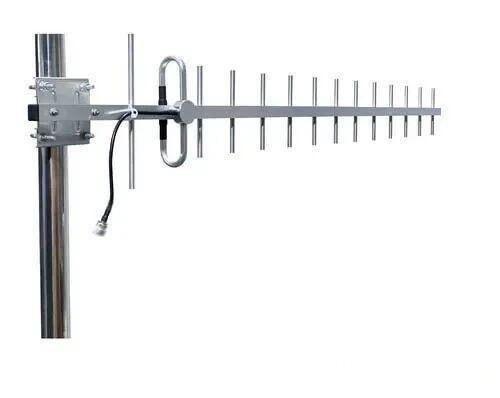
External antennas improve radio reception by increasing antenna gain and reducing signal loss. Many Modem Router devices support SMA or TS9 antenna connectors, allowing the use of omnidirectional or directional antennas depending on deployment conditions. Omnidirectional antennas with gains around 5–9 dBi are suitable for general coverage, while directional antennas such as Yagi types can exceed 10 dBi for long-distance communication. Mounting antennas outdoors or on rooftops minimizes signal blockage and reduces indoor attenuation. Proper coaxial cable selection and keeping cable length under 10 meters helps prevent additional signal loss during transmission.
Reduce Environmental Interference Near the Router
Environmental interference can degrade radio performance even when signal strength appears acceptable. Electromagnetic noise from power transformers, industrial motors, and switching power supplies may increase background interference levels. A Modem Router installed close to such equipment may experience reduced signal quality or unstable throughput. Maintaining a separation distance of at least one meter from large electronic devices helps minimize electromagnetic interference. In industrial environments, shielding cables and avoiding placement near large metal surfaces further improves signal quality. A clean radio environment allows the modem to maintain higher SINR values and more reliable cellular communication.
Advanced Diagnostics for Persistent SIM Card Router Disconnections
Check Router Logs and Connection Indicators
Router diagnostic logs provide detailed insight into network behavior. A Modem Router typically records events such as network registration attempts, PDP context activation, SIM authentication status, and signal changes. Administrators should review timestamps and recurring error codes to identify patterns, such as repeated LTE attach failures or frequent network reselection. Many routers also display radio indicators like RSRP, RSRQ, and SINR in the status panel. Monitoring these values alongside log entries helps determine whether the issue relates to weak signal conditions, authentication problems, or network handover events. Systematic log analysis enables faster and more accurate troubleshooting.
Update Modem Router Firmware to Improve Stability
Firmware updates not only fix software bugs but also upgrade the modem chipset drivers and radio protocol support inside the Modem Router. Cellular networks continuously evolve with improvements in LTE and 5G signaling, carrier aggregation, and network authentication methods. Updated firmware ensures the router can properly interact with these network features. Administrators should review firmware release notes to understand improvements such as enhanced band support or modem stability enhancements. After upgrading, it is recommended to restart the router and verify connectivity parameters like APN configuration and signal indicators to confirm that the update has been successfully applied.
Reset the Modem Router to Restore Default Configuration
A factory reset restores the Modem Router to its original system state, clearing configuration conflicts that may accumulate during long-term operation. Before performing a reset, administrators should export the current configuration file to preserve important settings such as APN profiles, firewall rules, and VPN parameters. After resetting, reconfigure the router step by step rather than importing old settings immediately. This approach helps identify whether a specific configuration caused the instability. Performing a reset followed by careful configuration verification often resolves persistent connectivity issues that cannot be traced through standard troubleshooting steps.
Physical Maintenance Checks for Reliable Modem Router Connectivity
Inspect Cellular Antenna Connections
Cellular antennas determine how effectively a Modem Router receives radio signals from nearby base stations. In addition to checking that connectors are firmly tightened, administrators should verify the antenna type and orientation. LTE antennas typically use SMA or RP-SMA connectors and should be positioned vertically for optimal omnidirectional coverage. In weak-signal environments, antennas with gains of 5–9 dBi can significantly improve reception. It is also important to inspect coaxial cables for bending or damage, as cable loss may reduce signal strength. Periodic inspection ensures the antenna system continues to deliver stable and efficient cellular communication.
Verify the Router Power Supply Is Stable
Stable electrical input is essential for continuous Modem Router operation. Cellular routers typically require a constant DC supply such as 9–12 V or 12–24 V depending on the device model. Voltage fluctuations or insufficient current can cause the modem module to reset, leading to sudden disconnections. Using certified power adapters that meet the router’s rated voltage and current requirements prevents these interruptions. In industrial deployments, integrating an uninterruptible power supply (UPS) or regulated DC power system helps maintain stable voltage during power spikes or outages, ensuring uninterrupted network connectivity.
Check the SIM Slot and Hardware Components
The SIM slot forms the electrical interface between the SIM card and the router’s cellular modem. Over time, vibration, dust, or repeated insertion may affect the contact pins inside the slot. Administrators should periodically inspect the slot using proper lighting to ensure the pins remain straight and clean. Cleaning should be done with dry compressed air rather than liquids to avoid corrosion. In addition, confirm that the SIM card size matches the slot type, such as nano-SIM or micro-SIM. Proper hardware inspection ensures consistent electrical contact and reliable communication with the mobile network.
Preventive Practices to Keep Your Modem Router Connection Stable
Monitor Signal Strength and Network Performance Regularly
Consistent monitoring helps maintain stable cellular connectivity. Most Modem Router dashboards display key radio metrics such as RSRP (Reference Signal Received Power), RSRQ (Reference Signal Received Quality), and SINR (Signal-to-Interference-plus-Noise Ratio). These indicators show the real quality of the cellular link, not just signal bars. Administrators should track long-term trends using router logs or network monitoring tools. For example, RSRP values stronger than −90 dBm usually indicate a reliable LTE connection, while SINR above 10 dB supports stable data throughput. Recording these values weekly helps detect signal degradation early and allows quick adjustments in antenna position or router placement before connectivity problems occur.
Keep Modem Router Firmware and Settings Updated
Firmware updates ensure the Modem Router operates with the latest modem drivers, security patches, and cellular protocol optimizations. Mobile operators frequently refine network authentication methods and radio resource management, which routers must support to maintain stable connections. Updating firmware can improve carrier compatibility, enhance signal handover behavior, and optimize network scanning algorithms. Administrators should check manufacturer release notes and schedule updates during low-traffic periods to avoid service disruption. After each update, verify key configurations such as APN settings, network mode, and firewall rules. Maintaining current firmware and configuration policies helps ensure long-term performance and secure network communication.
Choose Reliable SIM Providers with Strong Coverage
Selecting a SIM provider is not only about price or brand reputation. Network coverage, latency, supported bands, and service reliability directly affect the stability of a Modem Router connection. Businesses often compare measurable carrier indicators to ensure consistent performance across different deployment environments.
| Evaluation Category | Key Technical Indicators | Typical Industry Benchmarks* | Application Scenario | Practical Considerations |
| Network Coverage | Population Coverage Rate (%) | Major carriers: 97–99% population coverage in developed regions (GSMA data) | Rural IoT deployment, logistics tracking, remote offices | Verify coverage maps for both population coverage and geographic coverage. Rural areas often have weaker signal density. |
| Cellular Technology Support | Supported Network Standards | LTE Cat4–Cat12, 5G NR Sub-6 GHz | Industrial routers, smart surveillance, connected vehicles | Ensure the Modem Router modem category matches carrier capabilities to avoid speed limitations. |
| Frequency Band Compatibility | Supported LTE Bands | Common global bands: B1 (2100 MHz), B3 (1800 MHz), B7 (2600 MHz), B20 (800 MHz) | Cross-region deployment, international roaming routers | Confirm that the SIM provider supports the frequency bands used by your router hardware. |
| Data Latency | Round-Trip Time (RTT) | LTE: ~30–50 ms typical; 5G: ~10–20 ms (ITU & operator benchmarks) | Real-time monitoring, cloud systems, industrial automation | Low latency improves responsiveness for VPN, remote management, and edge computing applications. |
| Network Reliability | Uptime Availability | Tier-1 carrier networks typically target ≥99.9% service availability | Mission-critical networks, smart transportation | Check SLA guarantees when using enterprise or M2M SIM contracts. |
| Signal Strength Threshold | RSRP (Reference Signal Received Power) | Good signal: −80 dBm to −90 dBm; usable signal: −90 dBm to −110 dBm | Router installation planning, antenna positioning | If signal drops below −110 dBm, an external antenna or relocation may be required. |
| Multi-Network Support | Roaming or Multi-Operator SIM | Global IoT SIMs support 300–600 networks across 150+ countries (industry IoT SIM providers) | Fleet management, international logistics, global IoT systems | Multi-network SIM cards allow the Modem Router to switch to the strongest available carrier automatically. |
| Data Plan Scalability | Monthly Data Allocation | Typical IoT plans: 50 MB–10 GB/month; enterprise broadband: 50 GB–unlimited | Surveillance cameras, telemetry systems, mobile offices | Estimate device traffic first to prevent throttling or unexpected overage charges. |
Tip:When deploying multiple routers across regions, test SIM cards from two carriers first. Compare signal strength (RSRP) and latency results before finalizing a provider. This small pilot test often prevents large-scale connectivity issues later.
Conclusion
SIM card router disconnections can interrupt data transmission and business operations, but most issues can be resolved through systematic troubleshooting. Checking signal strength, verifying SIM status, adjusting APN settings, updating firmware, and maintaining hardware can significantly improve Modem Router stability. Zhengzhou LEHENG Electronic Technology Co., Ltd. provides reliable Modem Router solutions designed for stable mobile connectivity, helping businesses maintain secure and efficient network operations.
FAQ
Q: Why does a Modem Router disconnect frequently?
A: Weak signal, SIM issues, or incorrect Modem Router settings often cause disconnections.
Q: How do I fix Modem Router SIM connection issues?
A: Check SIM status, verify APN settings, and restart the Modem Router.
Q: Can signal strength affect a Modem Router connection?
A: Yes. Poor cellular signal can cause unstable Modem Router connectivity.
Q: Should I update Modem Router firmware regularly?
A: Yes. Firmware updates improve Modem Router stability and network compatibility.
Q: How can I improve Modem Router signal performance?
A: Move the router, use external antennas, and reduce interference.


 External GPS Antenna
  Ceramic antenna
  Internal GPS Antenna
  Surveying Antenna
 Magnet Antenna
  Patch Antenna
  Rubber Antenna
  Screw Antenna
  Spring Antenna
  Other Indoor Coverage Antenna&outdoor Wlan Antenna
 2.4G Antenna
  5.8G Antenna

 Outdoor Yagi TV Antenna


 Ceiling mount antenna
  Wall mount panel antenna
 Fiberglass Antenna
  Panel Antenna
  Parabolic Antenna
  Yagi Antenna


